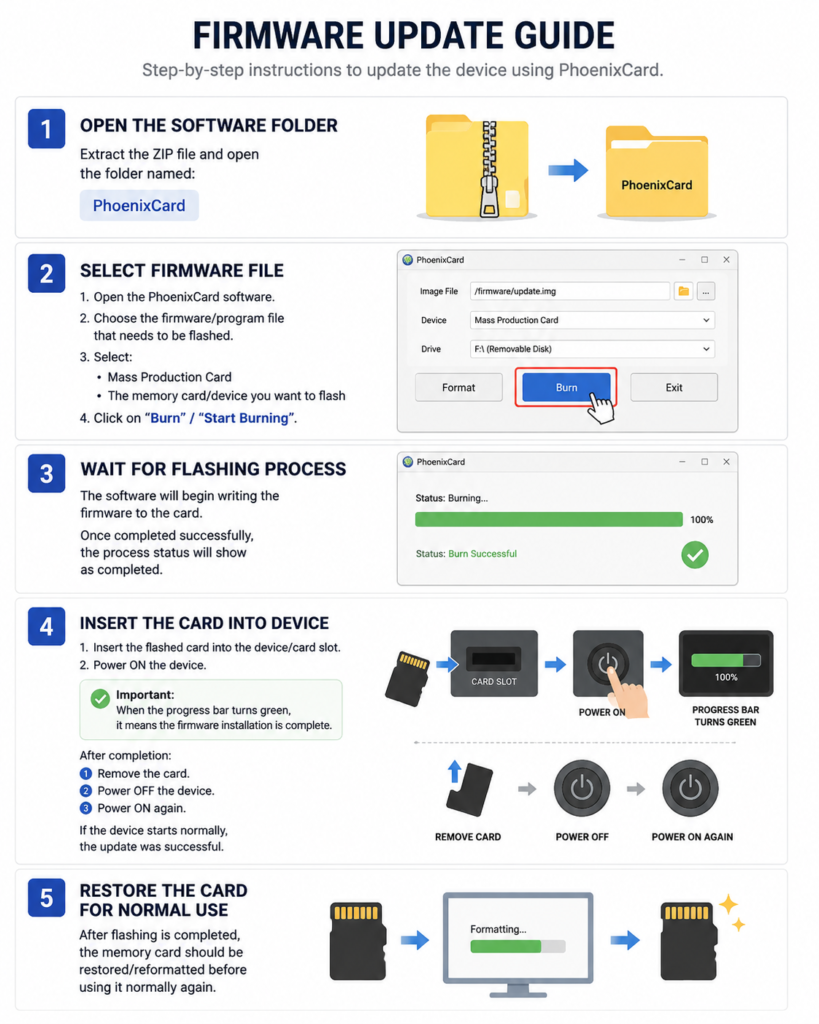

RUGHA - Phoenix Update Guide
Step-by-step instructions to update the device using PhoenixCard.
Step 1 — Open the Software Folder
Extract the ZIP file and open the folder named PhoenixCard.
Step 2 — Select Firmware File
1. Open the PhoenixCard software.
2. Choose the firmware/program file that needs to be flashed.
3. Select the Mass Production Card and the memory card/device you want to flash.
4. Click on Burn / Start Burning.
Step 3 — Wait for Flashing Process
The software will begin writing the firmware to the card. Once completed successfully, the process status will
show as completed.
Step 4 — Insert the Card into Device
1. Insert the flashed card into the device/card slot.
2. Power ON the device.
Important: When the progress bar turns green, the firmware installation is complete.
After completion:
• Remove the card.
• Power OFF the device.
• Power ON again.
If the device starts normally, the update was successful.
Step 5 — Restore the Card for Normal Use
After flashing is completed, the memory card should be restored/reformatted before using it normally again.
INstallation Guide